How to Create an Eye-Catching Maintenance Page in WordPress
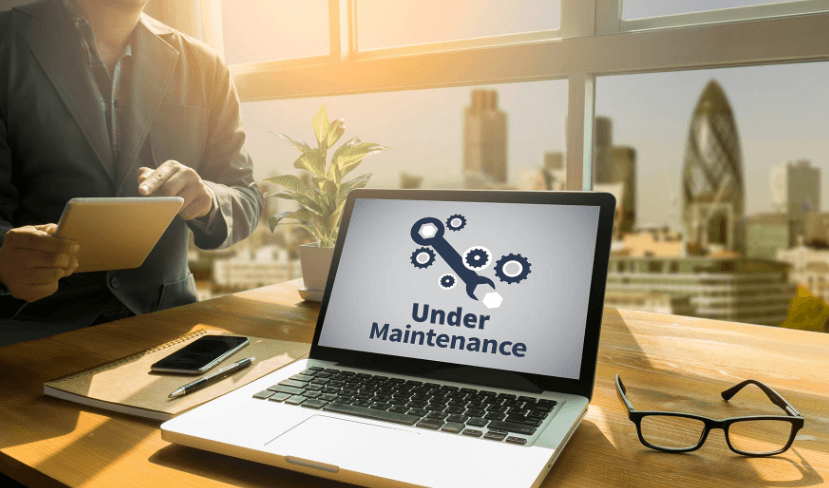
Every website eventually needs maintenance. Whether updating plugins, redesigning pages, fixing bugs, or improving performance, putting a site into maintenance mode prevents visitors from encountering broken features or incomplete content. However, simply displaying a blank screen or generic message can harm a brand’s credibility. An eye-catching maintenance page in WordPress ensures that even during downtime, a website remains professional, engaging, and strategically useful.
TL;DR: Creating an eye-catching maintenance page in WordPress involves combining smart design, clear messaging, and the right tools. By using plugins or built-in theme features, site owners can display professional, branded pages while work is being done behind the scenes. Adding visuals, countdown timers, contact options, and SEO-friendly elements improves user experience and maintains engagement. With thoughtful planning, maintenance mode can become a branding opportunity instead of a setback.
Why a Maintenance Page Matters
A maintenance page serves more than just a technical purpose. It is a communication tool. Instead of confusing visitors with errors, it reassures them that improvements are underway. A well-designed page can:
- Protect brand reputation by avoiding broken layouts and error messages.
- Maintain user trust through transparent communication.
- Encourage return visits with launch countdowns or email signups.
- Support marketing goals by promoting social media channels.
Without a proper maintenance page, visitors may assume the website has been permanently shut down or compromised. That risk alone makes investing time in design worthwhile.
Key Elements of an Eye-Catching Maintenance Page
Before diving into tools and plugins, it helps to understand the core components that make a maintenance page visually appealing and effective.
1. Clear and Friendly Messaging
The tone should match the brand voice. Instead of saying “Site Under Construction”, a more engaging message such as “We’re making improvements for a better experience” feels thoughtful and customer-focused.
Effective messaging should:
- Explain what is happening
- Provide an estimated timeframe (if possible)
- Offer alternative contact methods
2. Strong Visual Branding
The maintenance page should look like part of the main website. It should include:
- Logo
- Brand colors
- Typography consistent with the main site
- High-quality background images or graphics
[ai-img]website maintenance page design, modern landing page, branded wordpress page[/ai-img]
Visual consistency reinforces credibility and ensures visitors recognize the brand immediately.
3. Engaging Visual Features
Modern maintenance pages often include:
- Countdown timers for relaunch dates
- Email signup forms to notify visitors when the site is live
- Social media links to maintain engagement
- Progress bars to show development status
These interactive elements transform a simple notification into an engaging waiting experience.
Methods to Create a Maintenance Page in WordPress
There are several ways to enable maintenance mode in WordPress. The right method depends on technical skill level and customization needs.
Option 1: Use a Dedicated Maintenance Mode Plugin
Plugins are the easiest and most flexible solution. They allow complete customization without coding knowledge.
Popular options include:
- UnderConstructionPage
- WP Maintenance Mode
- Coming Soon & Maintenance Mode
- SeedProd
- Elementor Maintenance Mode
[ai-img]wordpress plugin dashboard, maintenance mode settings, wordpress admin panel[/ai-img]
Option 2: Use Theme-Based Maintenance Settings
Some premium WordPress themes include built-in maintenance mode functionality. This allows users to:
- Create a custom page
- Assign it as the maintenance template
- Restrict access to administrators only
This approach works well for users already comfortable with theme configuration panels.
Option 3: Manual Maintenance Mode with Code
Advanced users may prefer manually activating maintenance mode via the .maintenance file or custom functions in functions.php. While this provides flexibility, it is not recommended for beginners.
Manual methods lack built-in design tools, so custom styling must be coded separately.
See also: How AI Is Transforming Everyday Technology
Step-by-Step Guide Using a Plugin
To illustrate the process, consider a simple workflow using a plugin like SeedProd:
- Install and activate the plugin from the WordPress dashboard.
- Navigate to the plugin’s settings panel.
- Choose a maintenance page template.
- Customize branding elements (logo, colors, typography).
- Add a countdown timer or email opt-in form.
- Enable maintenance mode.
Once activated, visitors will see the maintenance page, while logged-in administrators can continue working normally.
[ai-img]countdown timer website page, email signup form minimal design, coming soon page example[/ai-img]
Design Best Practices for Maximum Impact
Keep It Simple
Cluttered pages defeat the purpose of maintenance mode. A clean layout with focused messaging is more effective than excessive design elements.
Optimize for Mobile Devices
Mobile responsiveness is critical. Many visitors may check the website from smartphones, and the maintenance page should look equally polished across devices.
Use High-Quality Visuals
Blurry or generic stock photos can harm branding. It is better to use:
- Custom illustrations
- Brand photography
- Minimal graphic backgrounds
Maintain SEO Visibility
A maintenance page should return the correct HTTP status code. For short-term updates, a 503 Service Unavailable status is recommended. This tells search engines the downtime is temporary, preventing ranking penalties.
Include Contact Information
Businesses especially should provide:
- Email address
- Phone number
- Links to active social media profiles
This ensures customers can still reach the organization during maintenance.
Turning Maintenance Mode into a Marketing Opportunity
An eye-catching maintenance page can actively grow an audience. Instead of merely informing, it can:
- Collect email subscribers for relaunch announcements.
- Generate excitement with sneak peeks.
- Promote limited-time launch offers.
- Strengthen brand storytelling.
By adding persuasive copy and strong visuals, businesses can transform downtime into anticipation-building momentum.
Common Mistakes to Avoid
- Using default WordPress messages without customization.
- Forgetting mobile optimization.
- Disabling the site without notice.
- Ignoring SEO best practices.
- Leaving maintenance mode on too long.
Even a beautifully designed page can cause issues if left active for weeks without updates.
How Long Should Maintenance Mode Last?
For minor updates, maintenance mode should ideally last only a few hours. For major redesigns, some businesses opt to keep a coming-soon style page active for days or weeks. In those cases, regular progress updates and social engagement help maintain interest.
Transparent communication helps manage visitor expectations and reinforces trust.
Final Thoughts
Creating an eye-catching maintenance page in WordPress is both strategic and creative. It requires thoughtful messaging, consistent branding, and the right tools. Whether using a plugin, theme feature, or manual code, the goal remains the same: preserve trust and engagement during downtime.
When approached correctly, maintenance mode becomes more than a temporary fix. It becomes a polished, purposeful extension of the brand experience.
Frequently Asked Questions (FAQ)
1. What is the difference between maintenance mode and coming soon mode?
Maintenance mode is typically used for temporary updates on an existing site, while coming soon mode is used before a new website launch.
2. Will maintenance mode affect SEO?
If configured properly with a 503 status code, short-term maintenance should not negatively impact search rankings.
3. Can administrators still access the website?
Yes. Most WordPress maintenance plugins allow logged-in administrators to bypass the maintenance page.
4. Is it possible to customize maintenance pages without coding skills?
Yes. Drag-and-drop plugins or page builders like Elementor allow full customization without writing code.
5. Should an email signup form be included?
Including an email signup form is recommended if downtime will last more than a few hours, as it helps retain visitor interest.
6. How can the maintenance page match the brand design?
Using brand colors, typography, logos, and consistent messaging ensures the maintenance page aligns with overall brand identity.
7. How do users turn off maintenance mode?
In most plugins, maintenance mode can be disabled with a single toggle in the WordPress dashboard settings.